


Laptop running at a snail’s pace? We feel your frustration.
Whether you use your laptop for work or study, a slow laptop is an exasperating experience that puts a real dent in your productivity - or destroys it altogether.
It’s a widespread issue that literally wastes time. According to iolo, slow laptops waste up to five days per year.
More often than not, slowness begets slowness as you spend hours frantically seeking the underlying reason for your laptop’s decision to run at the pace of evolution.
And that’s without mentioning the headache-inducing process of wading through a world of acronyms, tech specs, and temporary fixes, only to come up empty.
With that in mind, we’ve pulled together a batch of handy hacks for speeding up a laptop, each easy to implement and guaranteed to get your machine moving.
But before we explore how to speed up a laptop, let’s weigh anchor and examine why your laptop might be running slow in the first place.
Why Your Laptop Might Be Running Slow
From cluttered cache to an outdated operating system, there’s a whole host of potential reasons for a sluggish laptop, most of which can be easily remedied.
Common reasons for a listless laptop include insufficient RAM, a barrage of background programs running simultaneously, and everyone’s least favourite aspect of online activity, malware.
It’s also worth staying vigilant when it comes to hardware space, as most laptops require between 10 – 20% of free space for seamless operation. (They’re precious like that.)
And we’d be remiss if we didn’t mention browser tabs. If you’re in the midst of an epic research binge—whether personal or professional—it’s likely that you’ll have all of the browser tabs open simultaneously, which laptops tend to dislike.
As such, it’s always worth double-checking for these issues before beginning a deep dive into the inner workings of your machine, which can be quite complex.
Let’s unpack those issues in more detail, shall we?
1. Ditch Unused Programs
“I forgot I even had that.”
Perhaps the most used phrase when you begin investigating the reason for your laptop’s laziness. Like streaming subscriptions, computer programs are easy to install - and even easier to forget about entirely.
But do so at your peril. Unused, data-heavy programs are notorious for slowing down laptop performance. Similarly, many laptops (even used ones) come pre-loaded with programs that you may not need.
By uninstalling these unused or unwanted programs, you’ll free up some valuable disk space and get your machine moving again.
Fortunately, the process is simple.
To uninstall programs on a PC:
- Open up your control panel
- Click on programs and features
- Select the program you’d like to uninstall and follow the prompts
- Open applications in Finder
- Select the program you’d like to uninstall
- Either drag the program/app to the trash or use a built-in uninstaller
- You can also press and hold ‘options’ until apps begin to jiggle, then click the ‘x’ on the app you’d like to delete
Repeat the process as needed until you’ve removed the unwanted programs.
2.Double Check Your Storage Needs
Storage is crucial in laptop performance, affecting everything from boot-up times to quick loading of programs, and even speedy retrieval and transfer of files.
TL;DR: Ample storage is the unsung hero of laptop performance – the more you have, the speedier your machine will be.
But almost everything you do on your laptop eats up storage. Documents, spreadsheets, apps, games, it all adds up. And that’s before you toss photos and videos into the mix, the increasingly high resolution of which eats storage space for breakfast, lunch, and dinner.
That’s all to say, if your laptop is running slow, the solution may be as simple as freeing up some storage space.
The good news is that there are a few ways to increase the available storage on your laptop, including:
- Running a scan to identify which files are taking up the most space and deleting them accordingly
- Purchasing a removable hard drive and transferring heavy files
- Ensure you’ve got the right size hard drive for your needs
- Upgrading your hard disk drive (HDD) to a solid state drive (SSD) can get your laptop moving at up to six times the speed of an HDD
So, before you begin a deep dive into programs, malware, and more, go back to basics and double-check your storage needs. You’d be surprised how much sprightlier a deletion spree will make your laptop.
FYI: Always double-check what you’re deleting. The last thing you want is to accidentally delete a beloved photo or essential program in your zeal to free up disk space.
3. Restart Your Laptop
Is it the most technically-minded way to speed up your laptop? No. Does it often solve the issue of a sluggish laptop? Very much so.
It’s perhaps the biggest cliché in the tech world, but if your laptop is crawling along and struggling to perform basic tasks, simply try restarting your machine or shutting it down and booting it up again.
But why does it work?
When you restart your laptop it clears the memory, fixes software glitches, and resolves pesky Bluetooth and internet connection problems.
In many cases—especially if you’re using your computer for work—laptops are left running for days, if not weeks, which wears down components, prevents updates from completing, and takes a toll on battery life.
Of course, restarting your laptop won’t fix every issue that may be slowing your machine down, but it’ll take care of the basics and get your machine moving.
4.Stop Startup Applications
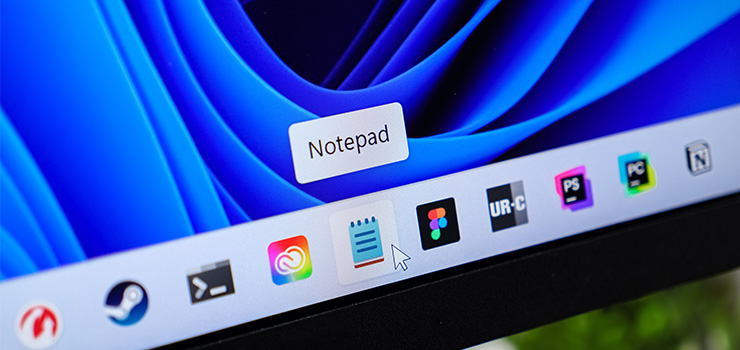
Question: When you boot up your laptop, are you met with a barrage of applications starting up simultaneously, as if competing for your attention?
Frustrating, isn’t it? It’s like being hounded by needy programs each time you start up your machine. (And before you’ve enjoyed your morning coffee.)
But frustrations aside, start-up applications can also affect your laptop’s performance, causing it to be sluggish when you need it to be speedy.
On the upside, it’s an easy fix. If you’re a Windows user, simply:
- Go to the settings menu
- Select ‘Apps’ > ‘Startup’
- Select which apps are enabled on launch
If you’re a Mac user, you’ll need to:
- On the dock, control-click on the app you’d like to disable
- Check/uncheck ‘open at login’ for each app
And you’re done. No more pesky startup apps harassing you on launch and slowing your laptop down.
5.Banish Bloatware

Bloatware (which is also known by a more… scatological name, look it up) is any unwanted or hidden program that comes pre-installed on a laptop.
Think of it as firmware’s evil twin—one is essential for your laptop’s operation, the other is often included for a manufacturer’s benefit, designed to keep you in their software ecosystem, for better or worse.
According to Fortinet, common examples of bloatware include weather apps, calendars, and pre-installed games, sometimes designed by third parties.
As you can imagine, bloatware is often more hindrance than help, eating up valuable space on your machine and slowing down overall performance.
So if you’re eager to speed up your laptop, that bloatware’s got to go.
The easiest method of banishing bloatware is to identify and manually uninstall it. Just pull up a full list of programs and uninstall anything that you’re unlikely to use.
If you’re pressed for time (or patience), you could also use bloatware-identification software, which’ll do the heavy lifting for you.
Whichever method you choose, cutting the bloatware should speed up your laptop, keeping your machine lean and agile.

And there you have it. Five beginner-friendly ways to speed up a sluggish laptop.
Whether it’s ditching bloatware, limiting startup applications, or simply restarting your machine, try these tips the next time your laptop is moving at a tractor-like speed.
Need more laptop advice? Check out our blog, where you’ll find articles on everything from essential tips for setting up a new PC to how much RAM is right for your needs.
 RSS Feed