


As tech misconceptions go, there’s an absolute doozy surrounding iPads. You’ve probably seen it bandied about online or overheard it in casual conversation.
The wording may vary, but it typically goes something like this:
“They’re just big iPhones.”
Ringing any bells?
Despite their impressive range of industry-leading features, iPads often find themselves dismissed as simply larger versions of Apple’s flagship device.
But that does them a disservice.
In fact, the most-used features of an iPad (streaming, social media, etc.) are just the tip of the tech iceberg when it comes to their breadth of functionality, and the game-changing devices are jam-packed with intuitive features.
From the productivity-boosting to the entertainment-enabling, there’s a variety of stuff to do on an iPad that you (probably) didn’t realise you could.
With that in mind, let’s explore some of the many things you can do on an iPad, focusing on functions that’ll simplify your life and boost your productivity.
In fact, let’s start exactly there.
1. Boost your productivity with Sidecar
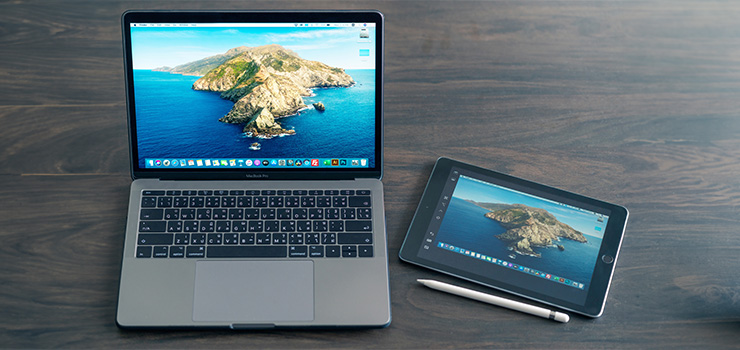
If you frequently find yourself frustrated by a lack of display space, this one’s designed with you in mind. (Not literally, that’d be bizarre.)
In a nutshell, Sidecar turns your iPad into a high-resolution second monitor, vastly expanding your workspace, which is likely music to your ears if you’re someone who’s tried every split-view configuration known to humanity.
The functionality of Sidecar is fluid and intuitive, allowing you to seamlessly flit between screens as you would with a conventional multi-monitor setup.
Whether you’re a graphic designer juggling projects and reference material or a marketing manager surfing spreadsheets and documents galore, Sidecar allows you to declutter your main monitor for a smoother, less overwhelming experience.
To enable Sidecar, you’ll need to make sure that both your MacBook and iPad are logged into the same Apple Account, and your Bluetooth and Wi-Fi are both on.
Then it’s as simple as opening your MacBook’s Control Centre, located in the top right of your menu bar. From there, just click screen mirroring and select your iPad from the dropdown menu.
Voila! Display expanded, multi-window headache quelled.
Neat, huh?
2. Streamline your brainstorming process with Freeform
Got a stone-cold case of busy brain? We hear you.
There’s little more frustrating than when you’re trying to plan a project and your brain sees fit to present you with every idea in human existence, simultaneously.
Enter: Freeform.
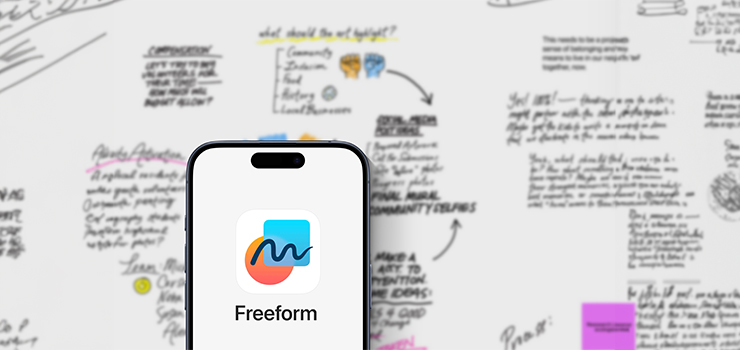
A recent (ish) entry into Apple’s preloaded applications, Freeform is best described as an infinitely expandable canvas, equipped with everything you need to organise and visualise your thoughts.
FYI: We use the phrase ‘infinitely expandable’ in the literal sense. As in, you can literally expand each project board as much as you need to, with no limits.
And as for what you put onto those boards? Well, that’s up to you.
Freeform boasts hundreds of satisfyingly simple symbols, ranging from basic shapes to specific pastimes, places, and professions, each of which can be resized and recoloured to your liking.
And if you can’t find exactly what you’re looking for, you can import photos and videos, as well as sketch directly onto the board with either a stylus or your finger.
There’s a slight learning curve as you explore Freeform’s range of features and compatibility, but once you’ve got the hang of it, it’s one of the most fun things to do on an iPad—even if you’re working.
3. Take the sting out of signing, scanning, and sending documents
As laborious, time-consuming tasks go, scanning, signing, and sending documents will forever have a place in the task-list rogues gallery.
And while we’ve come a long way from the old-school office setup featuring multiple pieces of hardware, document management can still be a boredom-inducing chore.
Fortunately, iPads can do much of the heavy lifting, streamlining the process into something far simpler, and much less time-consuming.
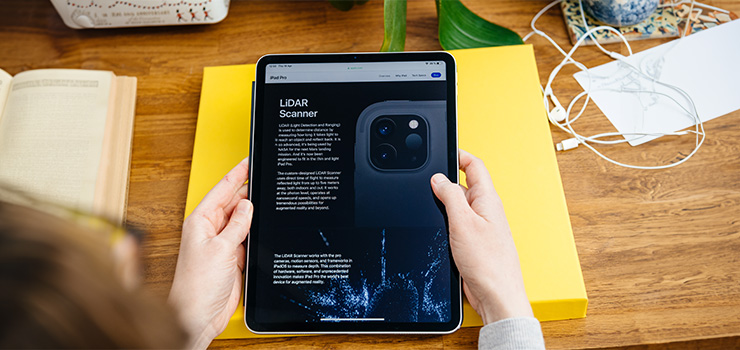
For example, you can use your iPad as a high-quality digital scanner by using either the Notes or Files apps in conjunction with your device’s built-in camera to instantly scan documents and export them into high-quality PDFs.
And that’s not all. Once you have those PDFs, your iPad can automatically recognise any blank fields and will offer you the option of either manually filling them out using the keyboard, or automatically filling them with saved details, such as names, addresses, and contact details.
Essentially, you can use your iPad as an all-in-one workstation to scan, receive, sign, or send documents from the comfort of your couch.
4. Make music, videos, and podcasts
In creative circles, there’s an adage that everyone’s a creative; they just need to find a medium that suits them.
And while that may or may not be true, the iPad’s powerful built-in creative tools allow you to feed your inner musician, director, or podcaster.
The two most notable are:
GarageBand
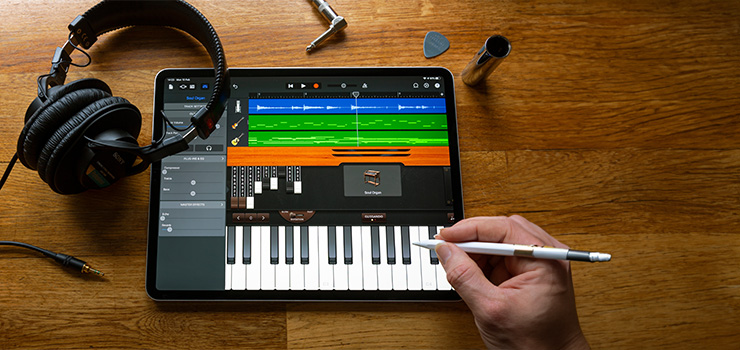
Whether you’re a veteran musician or songwriting novice, GarageBand is an industry-standard recording platform that allows you to write, record, mix, and master music all in one beginner-friendly app.
Packed with virtual instruments and pre-recorded loops, GarageBand offers you all the tools you need to craft your next track—and prepare it for release once you have.
And if you pick up a high-quality third-party adapter, you can even play instruments directly into the app, offering total creative freedom.
iMovie
More of a visual creative? Your iPad’s got you covered.
Despite its user-friendly nature, iMovie is a deceptively sophisticated piece of video editing software, ideal for content creators eager to give their videos a professional sheen.
With powerful (but easy to use) editing features such as transitions, filters, audio tools, and even green-screen functionality, iMovie makes short work (and immense fun) out of cutting together your project.
As with GarageBand, there’s a bit of a learning curve—especially if you’re new to editing—but a little perseverance unlocks a variety of tools to help you realise your creative vision.
The timeline interface is super accessible, with a variety of one-touch options, allowing you to have complete control over your project without requiring decades of experience.
5. Stay on top of your health and well-being
From blood pressure trackers to activity monitors, health and well-being apps have flooded the marketplace in recent years, with more popping up each day.
And while that’s a net positive—everyone should pay attention to their wellbeing—the apps on offer can vary wildly in depth, quality, and cost.
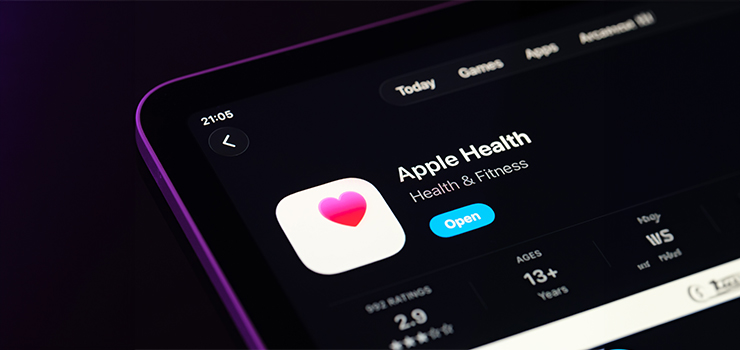
But if you’re an iPad user, you don’t need to sift through endless third-party apps, because there’s an incredibly powerful and intuitive tool preloaded onto your iPad.
That’s right, we’re talking about the Health app. It’s an often-overlooked feature, but it’s one of the best uses of an iPad, with real-life benefits.
You see, while the app itself isn’t exactly a secret, people often make the mistake of, well… ignoring it completely. But by doing so, they’re missing out on one of the smartest, most user-friendly health trackers available.
Whether you’re monitoring your sleep, managing medications, tracking specific symptoms, or keeping an eye on your mental wellbeing, the Health app can track a mind-boggling amount of health data to help you develop a complete picture of your wellbeing at any given moment.
As apps go, it’s very much in the category of ‘you get out what you put in’, and the more data you share with it, the more helpful it becomes.
Need a few examples? We’ve got you.
- You can input any medications you’re taking, the app will send you a notification, so you never miss a dose.
- You can trac your menstrual cycle, and the app can predict your next period or fertile window.
- You can take a mental health questionnaire to assess your mental wellbeing—and log your state of mind whenever you so choose.
- You can store your medical records, including notes from appointments, letters from physicians, and more.
- You can set up a medical ID, with information about any conditions, allergies, or emergency contacts, all of which can be accessed from your home screen in the event of an emergency.
It goes without saying, but anything you input into the Health app is private, unless you explicitly wish to share it with someone else.

Whether you’re a budding (or professional) creative, want to stay on top of your health and wellbeing, or just want an easier day-to-day, there’s plenty of stuff to do on an iPad.
Need more tech advice? Check out our blog, where you’ll find articles on everything from 5 MacBook hacks to make your life easier to a guide to the best free photo editing software.
 RSS Feed